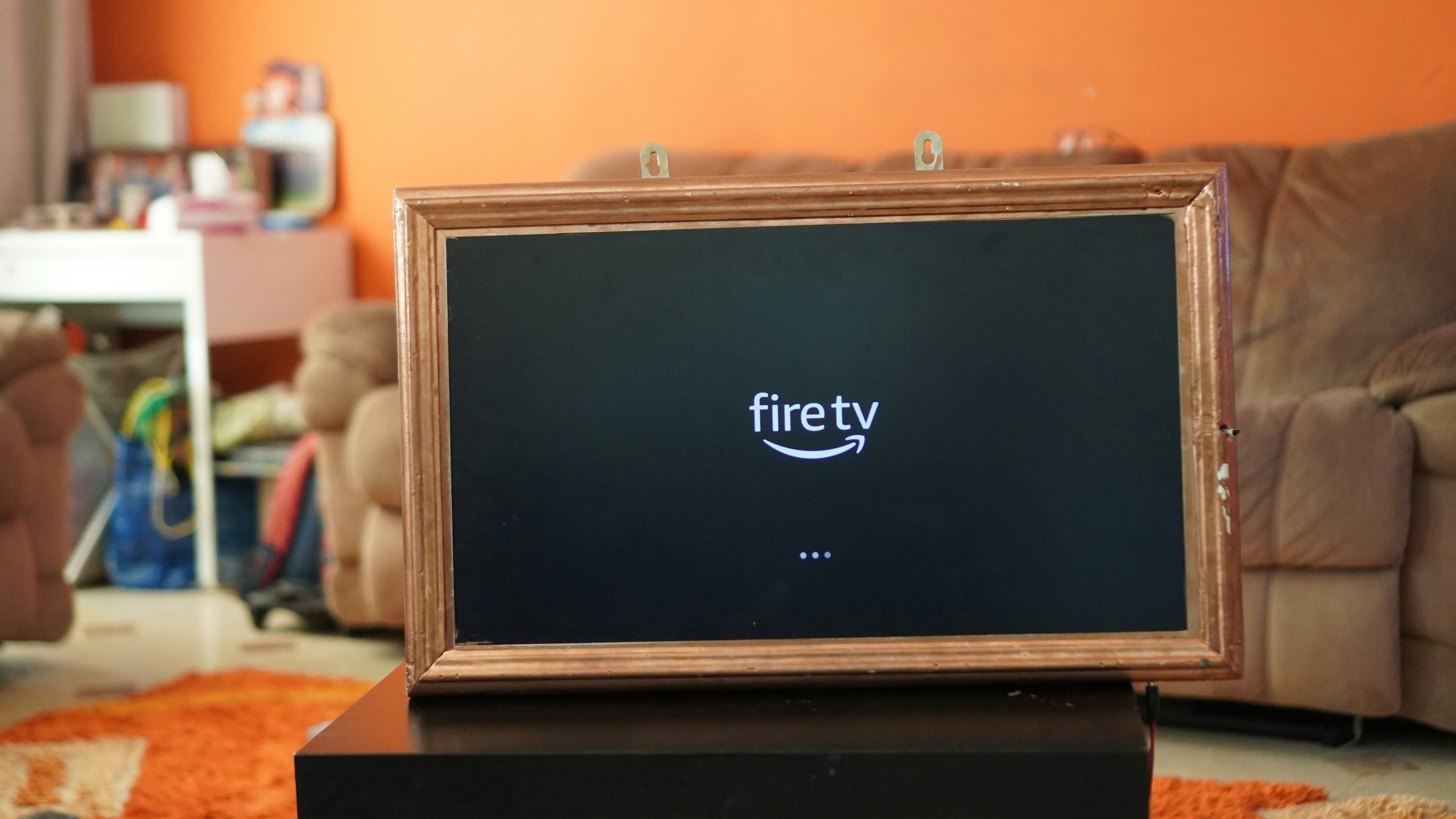
Streaming television on Amazon Firestick has become very popular thanks to its flexibility and ease of use. However, many users occasionally face problems when IPTV apps stop working, fail to load channels, or constantly buffer. These issues can be frustrating, especially when everything was working fine before.
This guide explains why IPTV may stop working on Firestick devices and provides simple troubleshooting steps to help restore normal streaming. The solutions below focus on common technical causes rather than specific apps or providers.
Why IPTV Stops Working on Firestick
Many streaming issues reported by users occur when using IPTV on Firestick devices, especially when network or app settings are not optimized.
When IPTV is not working on Firestick, the problem is usually related to connectivity, app configuration, or device settings. Since IPTV relies on an internet-based delivery system, even small interruptions can affect live streams or on-demand content.
In most cases, the issue is not caused by the Firestick itself, but by network instability, outdated software, or temporary app errors. Understanding how IPTV technology works can help identify the source of the problem more quickly.
Check Your Internet Connection First
A stable internet connection is essential for IPTV to function properly on Firestick. Live TV channels and streaming content require consistent bandwidth to avoid buffering or playback errors.
Start by checking your Wi-Fi signal strength. If the Firestick is far from the router, the connection may be weak. Restarting the router and modem can often resolve temporary network issues. If possible, connect the Firestick to a faster or less congested network.
Streaming services perform best on high-speed internet connections. Slow speeds or frequent drops can cause IPTV apps to freeze, stop loading channels, or display error messages.
App Configuration and Login Issues
IPTV apps rely on correct configuration settings to function properly. If an app is misconfigured or credentials are outdated, channels may fail to load or display correctly.
Check the app settings and confirm that all required information is entered correctly. In some cases, logging out and logging back in can refresh the connection between the app and the streaming system.
Using reliable applications and understanding how IPTV systems operate can also help prevent configuration-related issues.
Firestick Settings That Can Affect IPTV Performance
Certain Firestick system settings can interfere with IPTV apps. Cached data, limited storage space, or restricted app permissions may prevent smooth streaming.
Clearing the app cache is often a quick fix for performance problems. Make sure the Firestick has enough available storage and that the operating system is updated to the latest version.
Background apps running at the same time can also consume system resources. Closing unused apps helps improve overall performance and stability.
Get the Best IPTV Service in the USA
20,000+ channels · 4K quality · Works on Firestick & Smart TV · Instant activation
Does IPTV Stop Working After Firestick Updates?
Sometimes IPTV apps stop working properly after Firestick system updates. These updates may change security settings, reset permissions, or introduce compatibility issues with certain streaming applications.
When this happens, IPTV apps may fail to load channels, freeze during playback, or show unexpected error messages. Checking for app updates after a system upgrade can help restore compatibility. In some cases, restarting the Firestick or clearing cached data is enough to resolve these temporary issues.
If problems continue, reinstalling the affected app ensures it aligns correctly with the latest Firestick software version and system requirements.
How to Fix Buffering, Freezing, or Playback Errors
Buffering and freezing are among the most common IPTV problems on Firestick. These issues usually occur when the device struggles to maintain a steady data stream.
Restarting the Firestick can clear temporary glitches. Reducing video quality settings inside the app may also help when the internet connection is unstable.
Ensuring that video and audio settings are properly configured can improve playback consistency and reduce interruptions during live streams.
When to Reinstall or Reset IPTV Apps
If IPTV continues to malfunction after basic troubleshooting, reinstalling the app may be necessary. This removes corrupted files and restores default settings.
As a last resort, resetting the Firestick to factory settings can resolve deeper system issues. This step should only be used when all other solutions fail, as it removes installed apps and custom configurations.
Final Troubleshooting Tips
Most IPTV issues on Firestick are temporary and can be fixed with basic troubleshooting. Network stability, proper app configuration, and optimized device settings play a key role in maintaining smooth streaming.
For users who want a deeper understanding of how IPTV works and why these issues occur, learning more about how IPTV technology works can provide useful insight and help prevent future problems.